Gamemasters · Campaigns
Setup & Use Lore
Build reusable Lore — a kingdom, a cosmic Force, and a six-companion cast — then link it to a campaign and edit or replace it later.
Verified against app build 2f427ecbd · 2026-07-29
Lore wraps your campaign in a narrative — so the content feels like an adventure instead of a worksheet. A Lore holds three things: the kingdom (its name and its sovereign), the cosmic Force that runs through it (a name plus two opposed aspects), and the cast — a party of six companions. A Lore template is reusable: apply it to a campaign and a copy is embedded into that campaign, with a link back to the original so you can edit or replace it later.
Lore holds no villain
The Force is a dual principle, not good-versus-evil, and Lore deliberately carries no antagonist. The Boss belongs to a campaign’s Quest and each Mob to a path — they’re what twist the Force’s balance at their own scale (Force ⊃ Boss ⊃ Mob). So one Lore can back many campaigns with entirely different villains.
Two ways in
The everyday path is per-campaign: open a campaign’s edit sheet and attach Lore (any campaign-admin can do this). There’s also a standalone library for managing templates on their own — that library is currently system-admin only. This page covers both; most Gamemasters will use the per-campaign flow.
Build a Lore template
Open the Lore library (admin)
System admins open the standalone manager from the navigation drawer’s Lore entry — the Manage Lore dialog lists your templates (with a pinned RPGLMS Default entry always at the top), each with Edit/Delete, plus a Create New Lore button. An empty library shows “No Lore yet…”.
Capture pendingThe Manage Lore dialog listing template cards, the pinned RPGLMS Default badge, and the Create New Lore button1440 × 900 · 16:10The standalone library (system-admin).verified @ 2f427ecbd Create new Lore
Tap Create New Lore. The button is worded identically in both places — the standalone Manage Lore dialog and the campaign-side picker — so there’s no separate campaign-flow label to learn.
Authoring is Guided only: an inline mad-lib composes the Lore from single-word blanks, first for the kingdom and Force as one untitled opening passage, then for The Party — the six companions, each with its own set of typed blanks. Tap any highlighted word to change it. There’s no fill-it-for-me shortcut; every blank ships with a sensible default, so a Lore is already valid the moment you open it and you only edit what you care about.
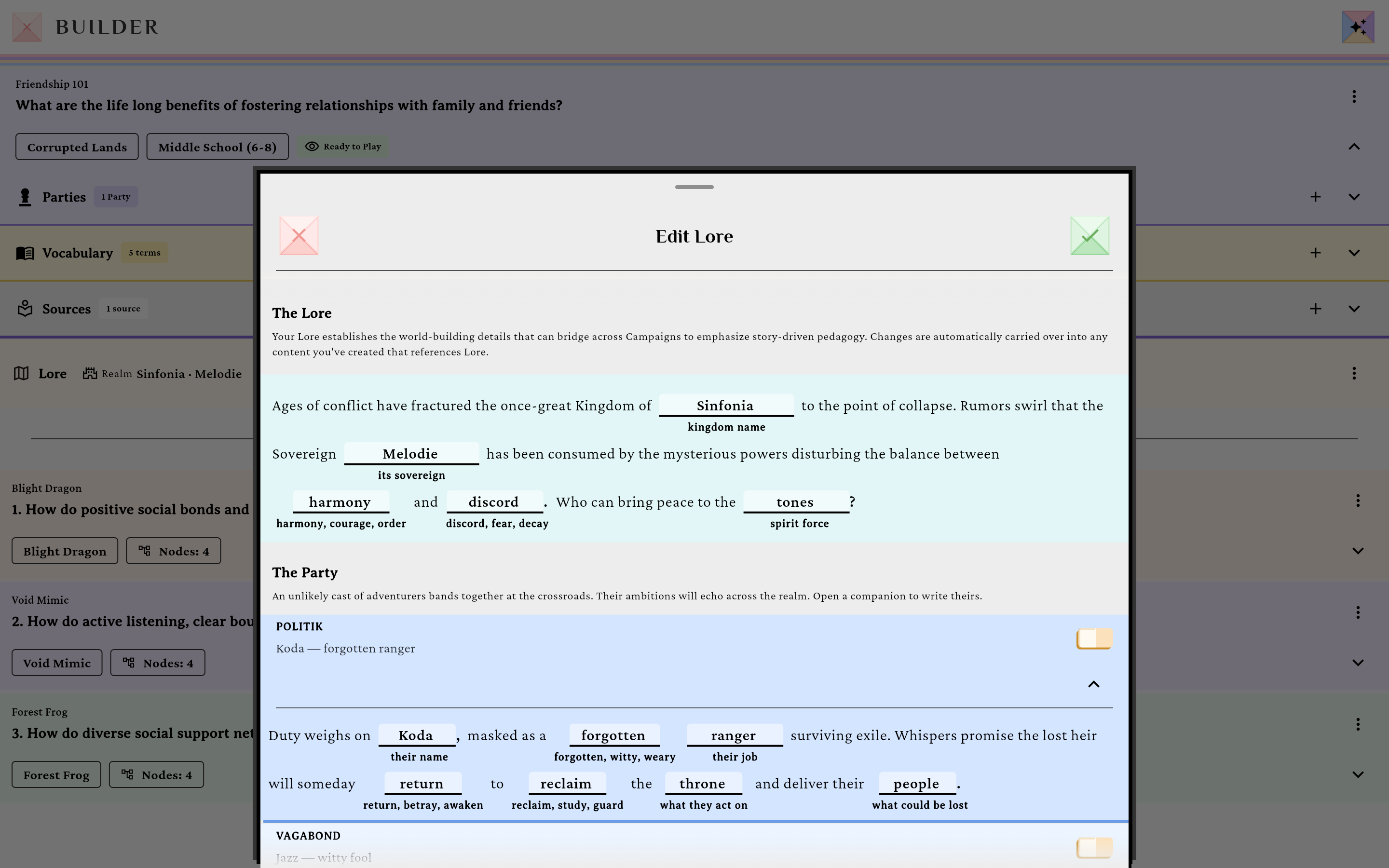
Guided mode composes the Lore from inline blanks.verified @ 2f427ecbd Where the Custom mode went
A freeform Custom authoring mode exists in the code but is compiled off (
ALLOW_CUSTOM_AUTHORING, default false), so the Guided/Custom toggle simply doesn’t render — you’ll see the The Lore header and go straight into the blanks. Nothing is missing from your build; guided is the intended path for now.Save the Lore
Save. It joins your Lore library and becomes selectable whenever you create or edit a campaign.
Apply Lore to a campaign
Attach Lore from the campaign sheet
In a campaign’s edit sheet, open the Lore section. While creating a campaign it shows a No Lore yet card with a Link or create Lore button; on an existing campaign with nothing linked you instead get Link or build Lore, next to Use RPGLMS Default when a default is available.
The picker is titled Select Lore when creating a campaign (no campaign ID yet) or Connect Lore when editing an existing one. Either way it lists My Library and Shared in your Houses templates, plus a pinned RPGLMS Default entry — choose one and tap Select / Connect.
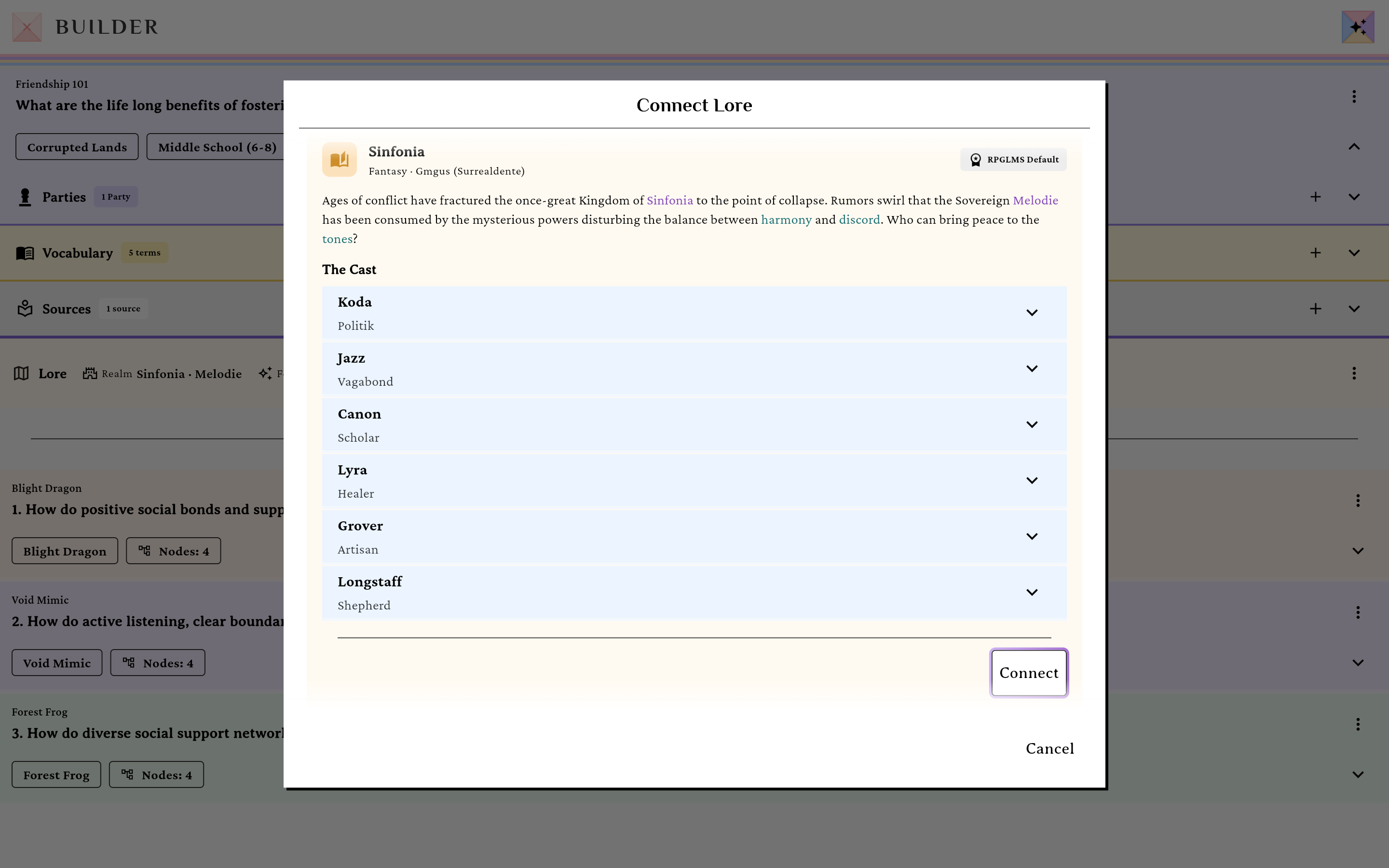
Pick a Lore template to embed into the campaign.verified @ 2f427ecbd Edit or replace later
On a linked campaign, the Lore card’s ⋮ menu offers exactly two actions: Edit Lore opens the Lore editor, and Replace Lore reopens the Connect Lore picker so you can swap in a different template. Replacing takes effect as soon as you confirm in the picker — there is no separate confirmation dialog.
No template sync
Once a campaign has Lore, it does not track later edits to the template it came from — the older “Sync from Template” action and its staleness indicator were removed with no direct replacement. To pull in template changes, use Replace Lore and reselect it.
Ownership & access
Templates are owned by their creator — you can only edit or delete your own. Trying it on someone else’s returns “You can only update your own worlds.” or “You can only delete your own worlds.” — the server still uses the internal name world for Lore in these messages. Applying Lore to a campaign requires campaign-admin rights on that campaign. Grounding AI generation on Lore additionally requires the Patron tier or higher, but authoring and attaching Lore does not.