Players · Avatar
Create & Customize Your Avatar
Open the avatar editor, change your hero's cosmetic slots, and save — free cosmetics on any tier, premium cosmetics with Patron.
Verified against app build 2f427ecbd · 2026-10-07
Your hero shows up across the app — on leaderboards, in quizzes, and on your profile. The avatar editor lets you change skin, hair, gear, and accessories, and preview the result live before you save.
Try it right now — no account
The avatar editor is fully playable in the public sandbox at app.rpglms.com/demo/sandbox. The demo grants premium cosmetics so you can preview everything (premium options are badged).
Customize your hero
Open the Player Journal drawer
Tap your avatar character (or the profile die in the app bar) to open the Player Journal drawer. Under your name sits your XP vial — your current job with a within-level readout — and your Shards and Renown totals. Below them are three rows: Edit Player Info, Edit Avatar, and Position Avatar, then Manage Subscription and your Campaign Records.
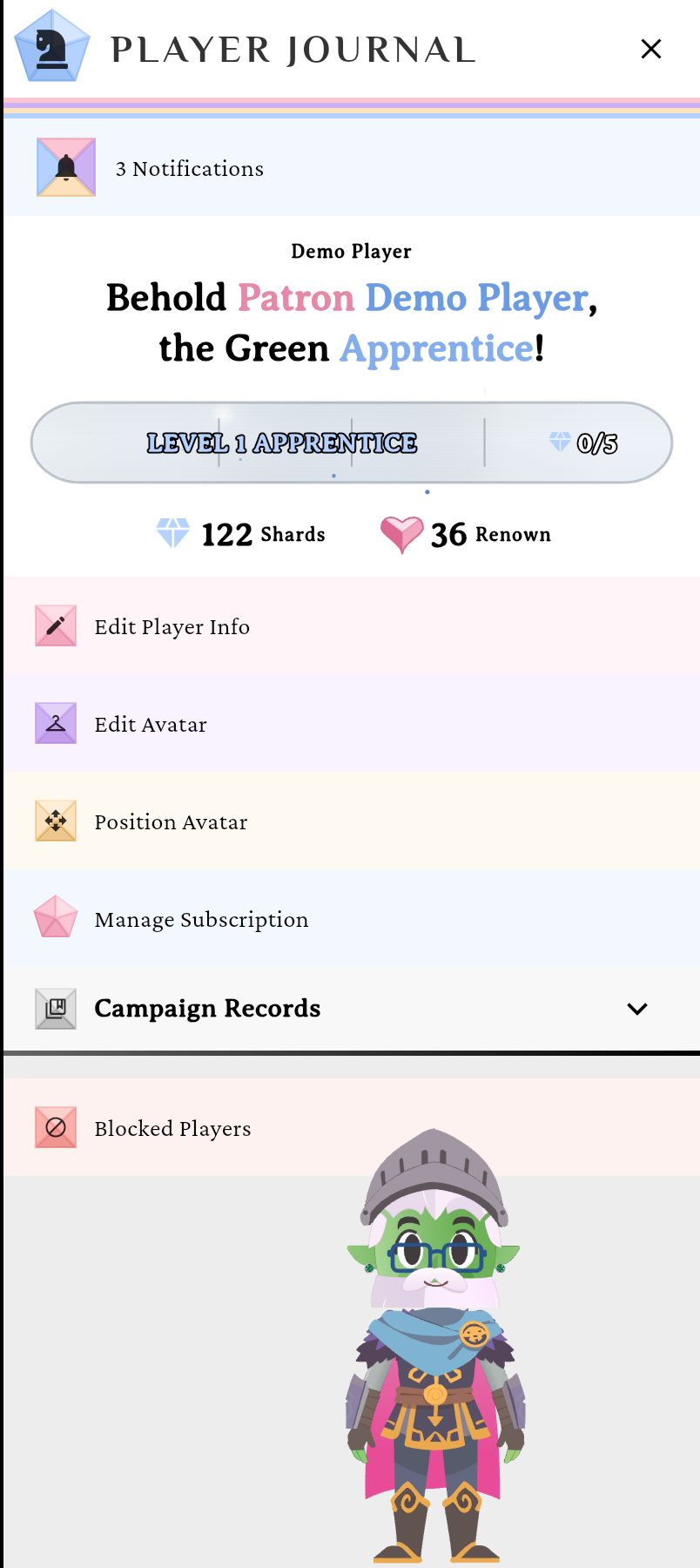
The Player Journal drawer.verified @ 2f427ecbd Tap Edit Avatar to open the editor
Tap Edit Avatar. The Edit Avatar sheet opens with your hero rendered live at the top, above the cosmetic slots. (On a brand-new account this same sheet appears as Meet Your Hero.)
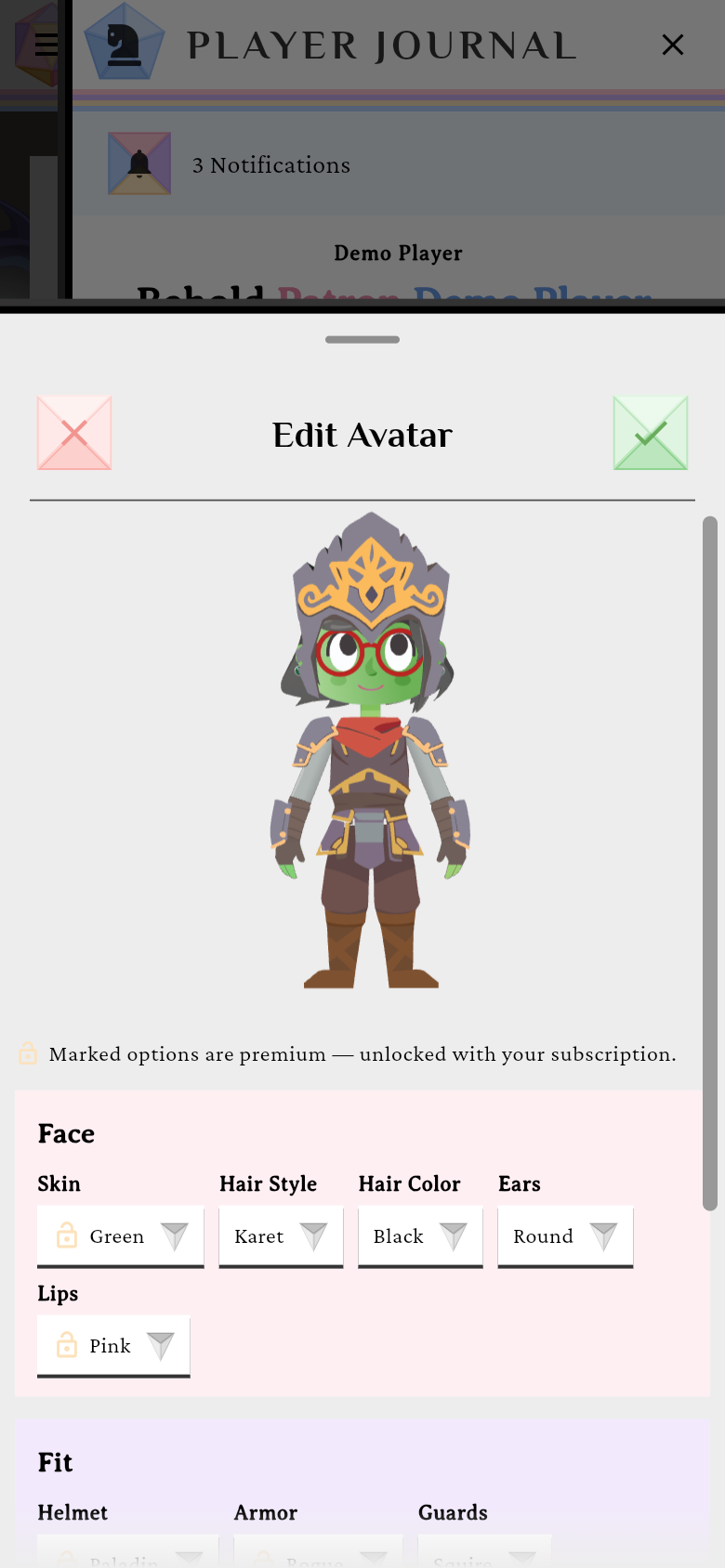
Your hero updates live as you change slots.verified @ 2f427ecbd Change cosmetic slots
The dropdowns sit in three sections: Face (Skin, Hair Style, Hair Color, Ears, Lips), Fit (Helmet, Armor, Guards, Cuffs, Cloak — plus Cloak Color once Cloak is set to anything but None), and Fab (Glasses, Earrings, Headband). The hero updates as you go. There is no weapon slot: your hero always carries a sword.
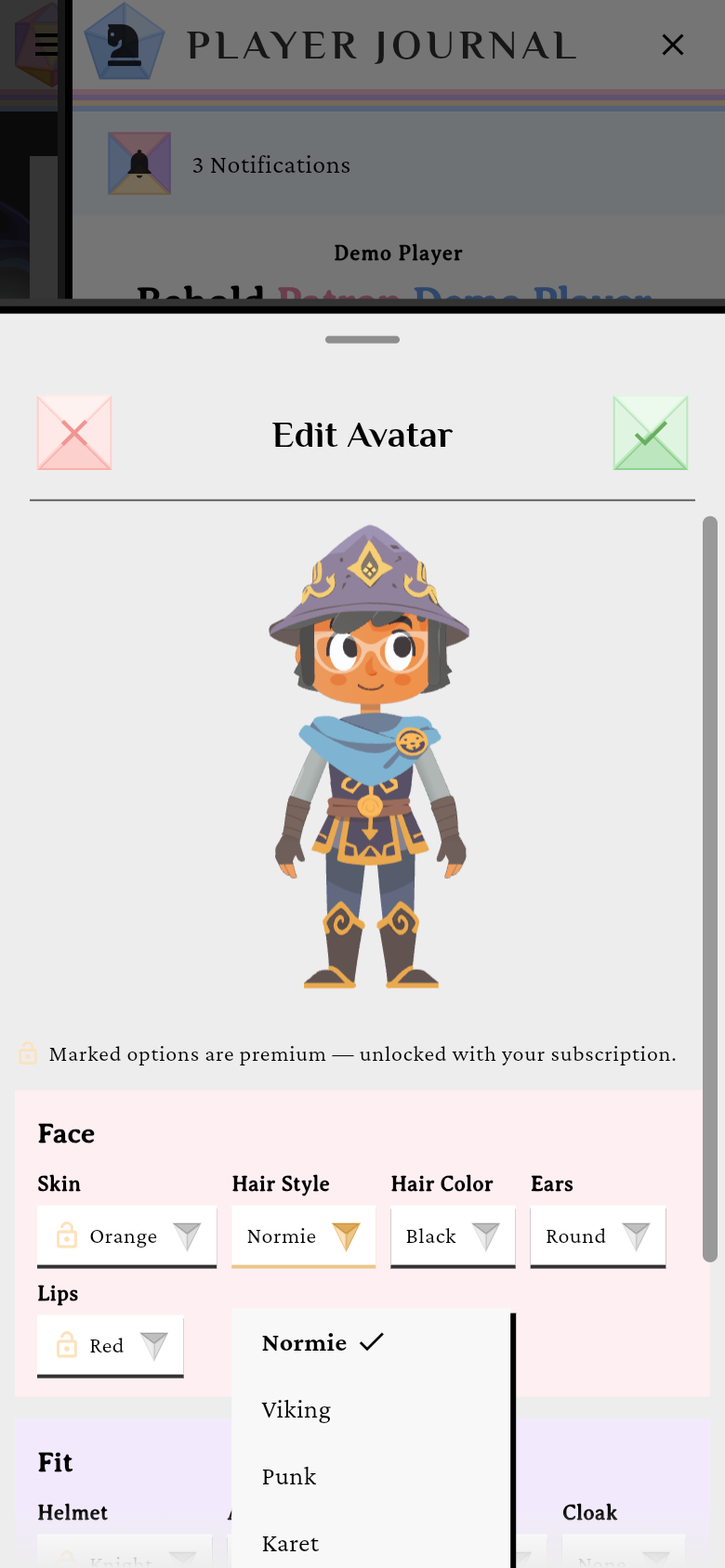
Each slot updates the preview instantly.verified @ 2f427ecbd Save
Tap Save to persist your look; the sheet closes and your avatar updates everywhere it appears.
Check your Job Progression
Tap the XP vial in the Player Journal drawer to open Edit Player Info, then tap your job — the last word of “Long live name, the title job!” — to open the Choose your job board: all 62 jobs grouped by lineage, Apprentice, three core lines, nine hybrid lines, and Master. The vial itself shows your current job and an x/y within-level readout, with a “x/y Shards to Level Up” tooltip.
Lineages start collapsed, each lid carrying a mastery band filled to how much of that line you’ve unlocked. Every tile is led by your D12 die — full colour for unlocked, pale for locked — so a locked job reads as locked from its die and its “???” content rather than a grayed-out tile.
You can re-spec here. Tapping any unlocked job that isn’t your current one picks it. The pick is only staged: it takes effect when you tap Save on Edit Player Info, and Cancel throws it away. You cannot rename a job — the names are fixed by the lineage.
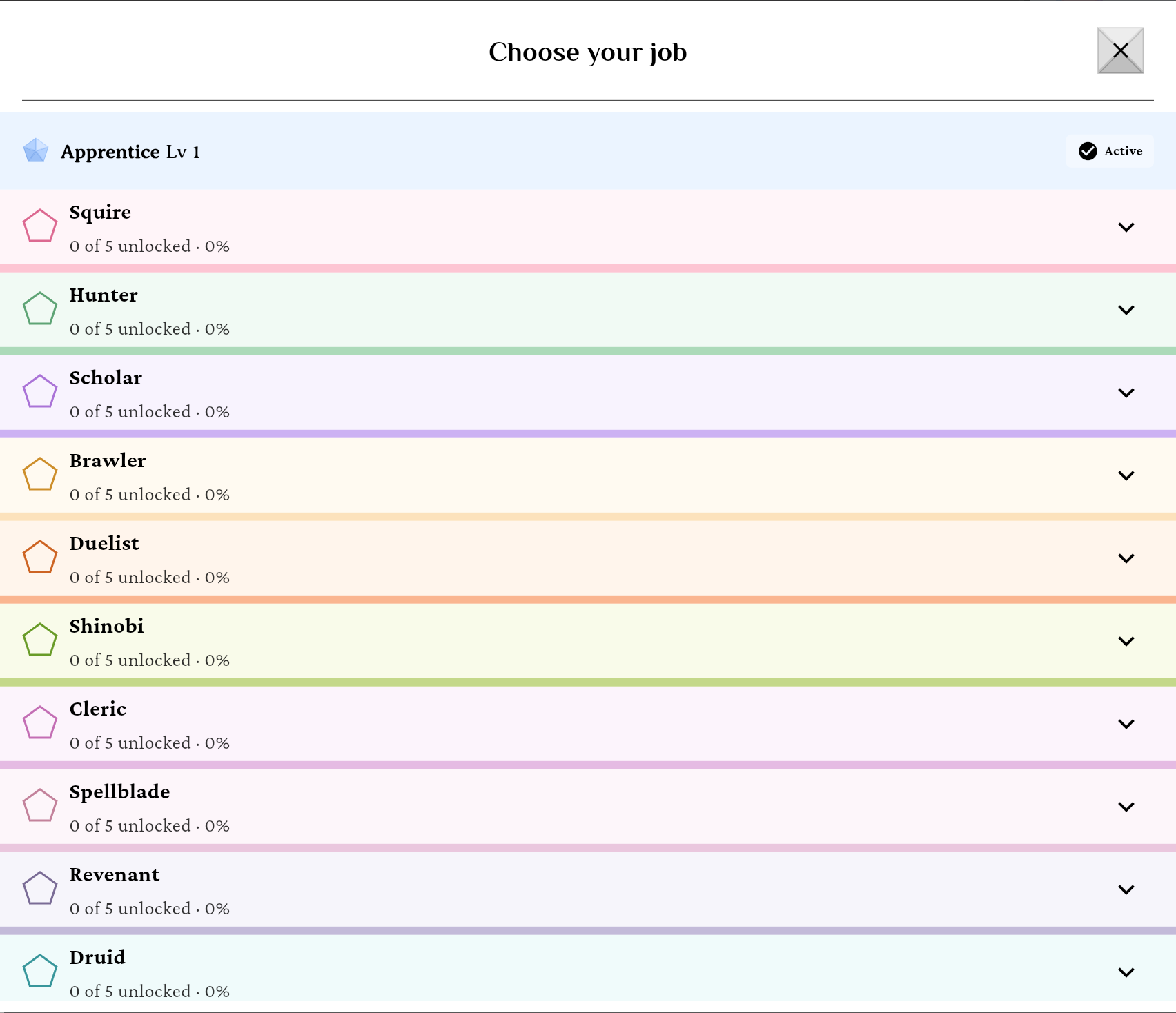
Your job lineage, from starting job to capstone.verified @ 2f427ecbd
Subscription
Requires Patron or higher.
Free accounts get the basic cosmetics. Premium options (some skins, armor sets, headbands, earrings, and lips) need an active Patron subscription to save. On Free, selecting a premium option shows “Premium cosmetics selected. Upgrade or renew to save them, or choose free options to continue,” and the Save button is disabled until you pick free options (or upgrade via View Plans).