Players · Parties
Join a Party with a Code
Enroll in a Party (Cohort) with a 6-character join code — from the in-app dialog or a join link — and troubleshoot the common errors.
Verified against app build 2f427ecbd · 2026-10-07
Joining a Party (Cohort) takes a 6-character join code from your Gamemaster. You can enter it in the app, or open a join link they share — both land you in the same place.
One code covers a whole House (course), not a single unit: you enrol once and every Campaign in the course is yours, including the ones your teacher adds later.
Two ways to join
Enter a code in the app
On Base Camp, switch to the Party Memberships tab on the party card and tap Join with Code. The Join a Party dialog explains: “Enter the 6-character join code provided by your Gamemaster (Teacher) to join the Party.” Type the code (it auto-uppercases) into the Join Code field and tap Join Party. Anything other than 6 characters is refused on the spot with “Code must be 6 characters.”
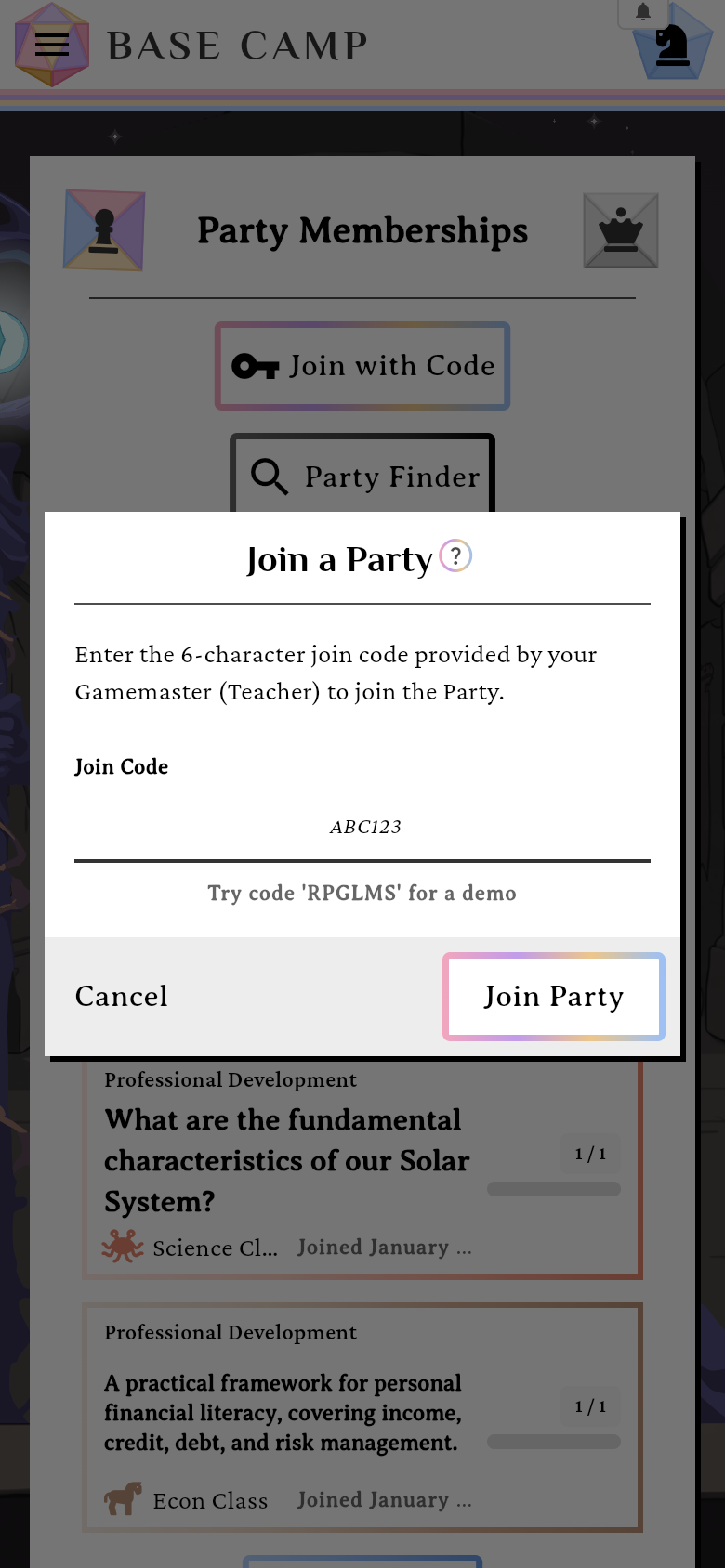
The in-app join dialog (note the “Try code 'RPGLMS' for a demo” hint).verified @ 2f427ecbd Or open a join link
If your teacher shares a link like
app.rpglms.com/join/ABC123, just open it. You’ll see “Joining with code ABC123…”, and the join runs automatically. If you’re not signed in yet, you’ll sign in first and the join resumes on its own.Land on the course
On success the app takes you to the House — your new course’s own page, listing every Campaign (unit) in it, along with the Lore the whole course is set in. Both ways in land in the same place. Open a unit from there.
Next up: Progress through a Campaign.
Try a demo class
No code yet? The dialog hints it for you — “Try code ‘RPGLMS’ for a demo” — and entering RPGLMS joins the demo course so you can look around.
Why a code might not work
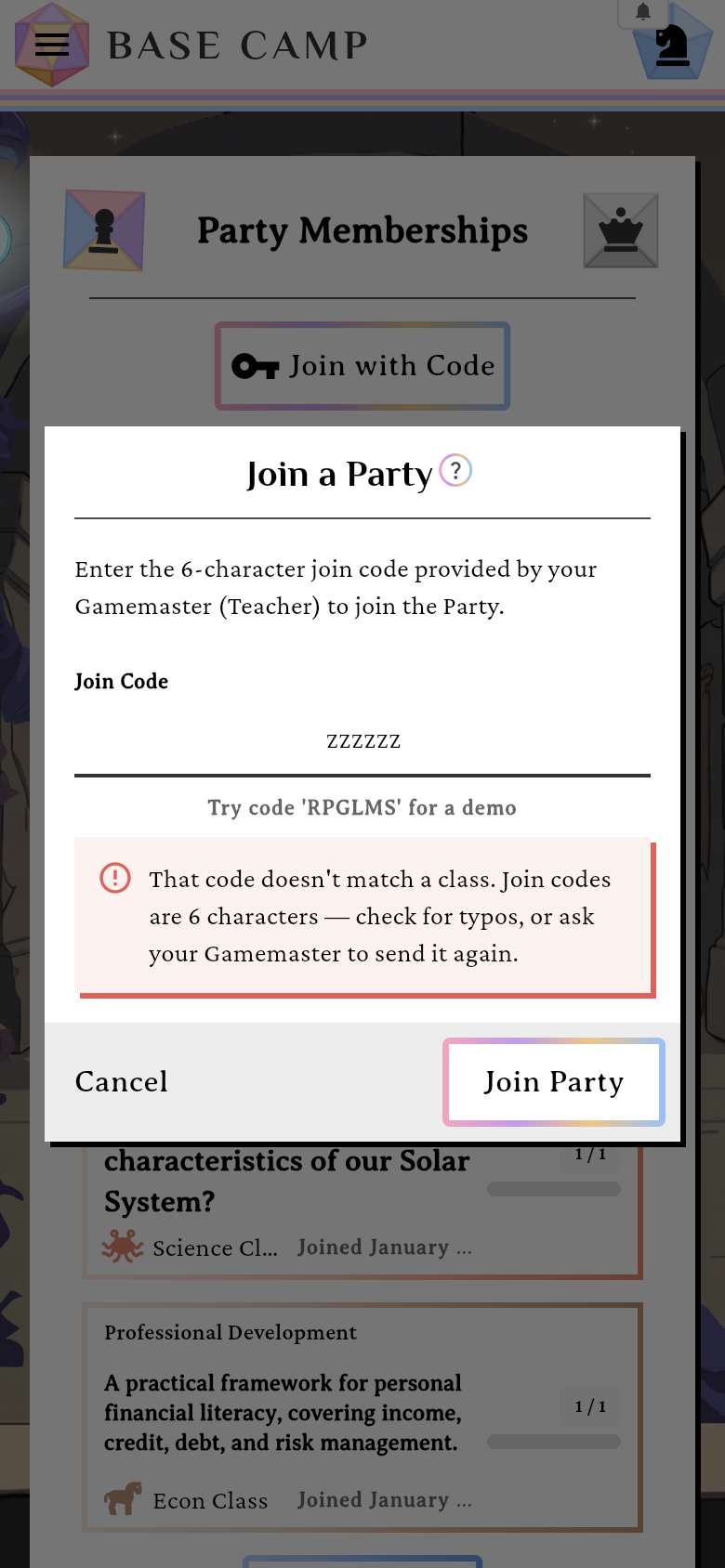
The dialog (or the “Unable to Join” screen, with Retry / Go Home) turns each refusal into something you can act on:
- “That code doesn’t match a class. Join codes are 6 characters — check for typos, or ask your Gamemaster to send it again.”
- “This class is closed to new students. Ask your Gamemaster to reopen it.”
- “This House has no campaigns yet. Ask your teacher to add one, then try your join code again.” — the course is still empty, so there’s nothing to play.
- “This class has no Gamemaster assigned, so nobody can run it. Ask your teacher to check the class.”
- “You are already in this House (course) through another class. Ask your Gamemaster to move you if you are in the wrong one.” — one course, one class at a time.
- “You run this House (course), so you cannot also join it as a student. Open it from Gamemaster Quarters instead.”
- “This class belongs to an organization you are not part of. Ask your Gamemaster to add you to it.”
- “Your Gamemaster has no seats left for new students. Ask them to free a seat or raise their limit.”
Re-joining a Party you previously left simply reactivates your membership (your progress is kept).