Gamemasters · Synth
Draft a Whole Campaign with Synth
Have Synth draft the Paths and Nodes of a Campaign (unit), review the draft, and apply it to your House (course).
Verified against app build 1.3.2 · 2026-11-08
Have Synth draft the Paths (chapters) and Nodes (lessons) of a Campaign (unit) on your House (course), then apply the draft you approve.
Trailer: the teacher’s story
Subscription
Synth needs a Patron plan or higher. Drafting a Campaign’s Path outline costs 0 credits each day, up to a limit. Filling Nodes with content spends credit. See Change Your Plan or Buy Credit.
Open Synth on the Campaign (unit)
In the Builder, open the Campaign card’s
⋮menu and choose Synth. The Paths stage opens. The first time you use AI, a Share with AI? sheet explains what is sent. Tap Allow to continue.Choose Plan Paths with Synth
Plan Paths with Synth (Plan New Paths with Synth once the Campaign has Paths) is the first card. Tap Note to steer it with A note for Synth (optional). Below the cards, Sources and Research topic give Synth material to draw on, and Settings sets the mode: Cost, Balanced or Performance.
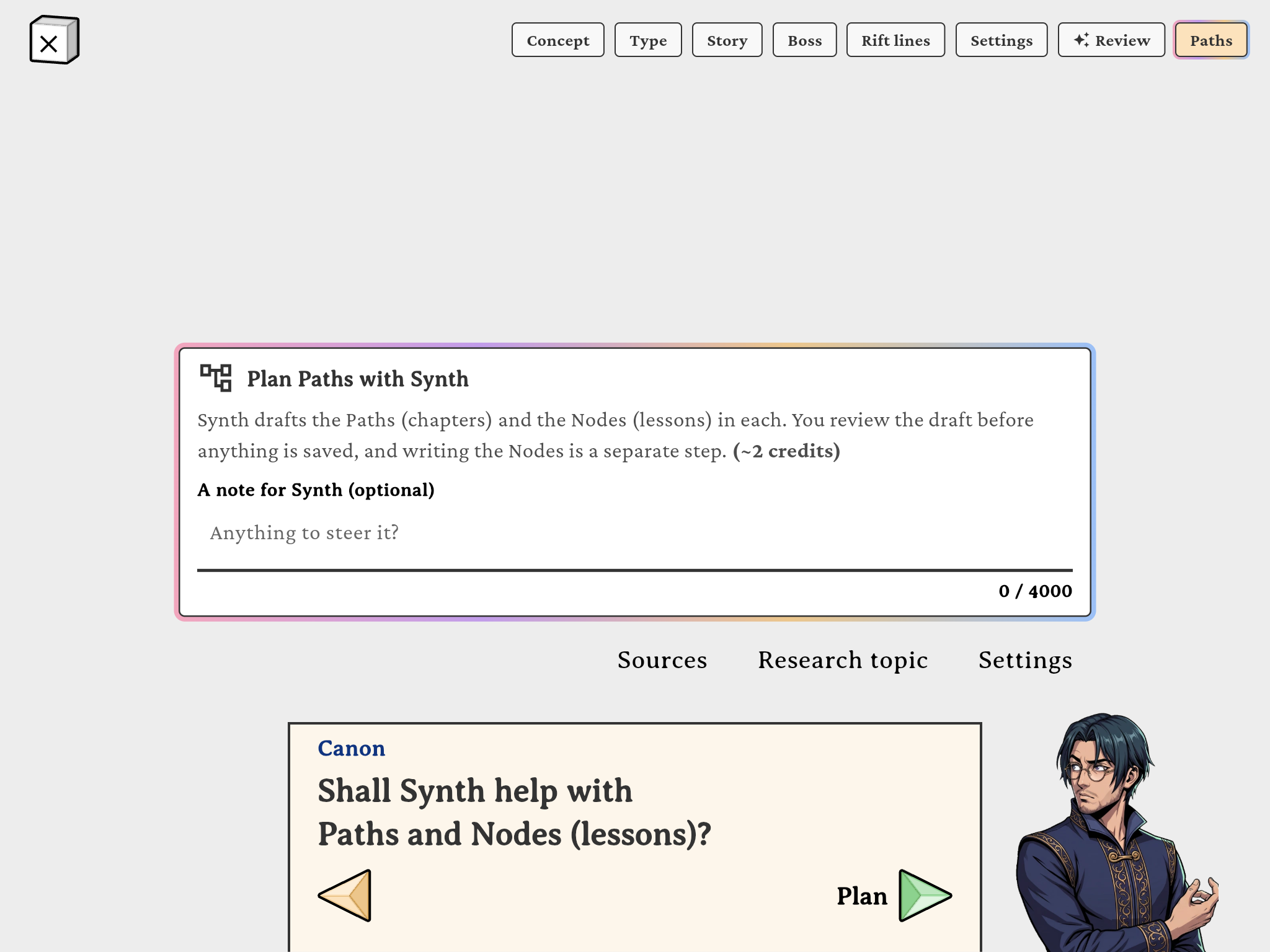
The Paths stage on a Campaign with no Paths yet.verified @ 1.3.2 Tap Plan
Tap Plan in the dock. Synth runs on the server, so you can close the page. If a run finishes while you are away, a Synth finished row appears in your Notifications.
Review the draft
The result is a draft card. Tap Review to list the drafted Paths, each with its Nodes. Nothing is saved yet.
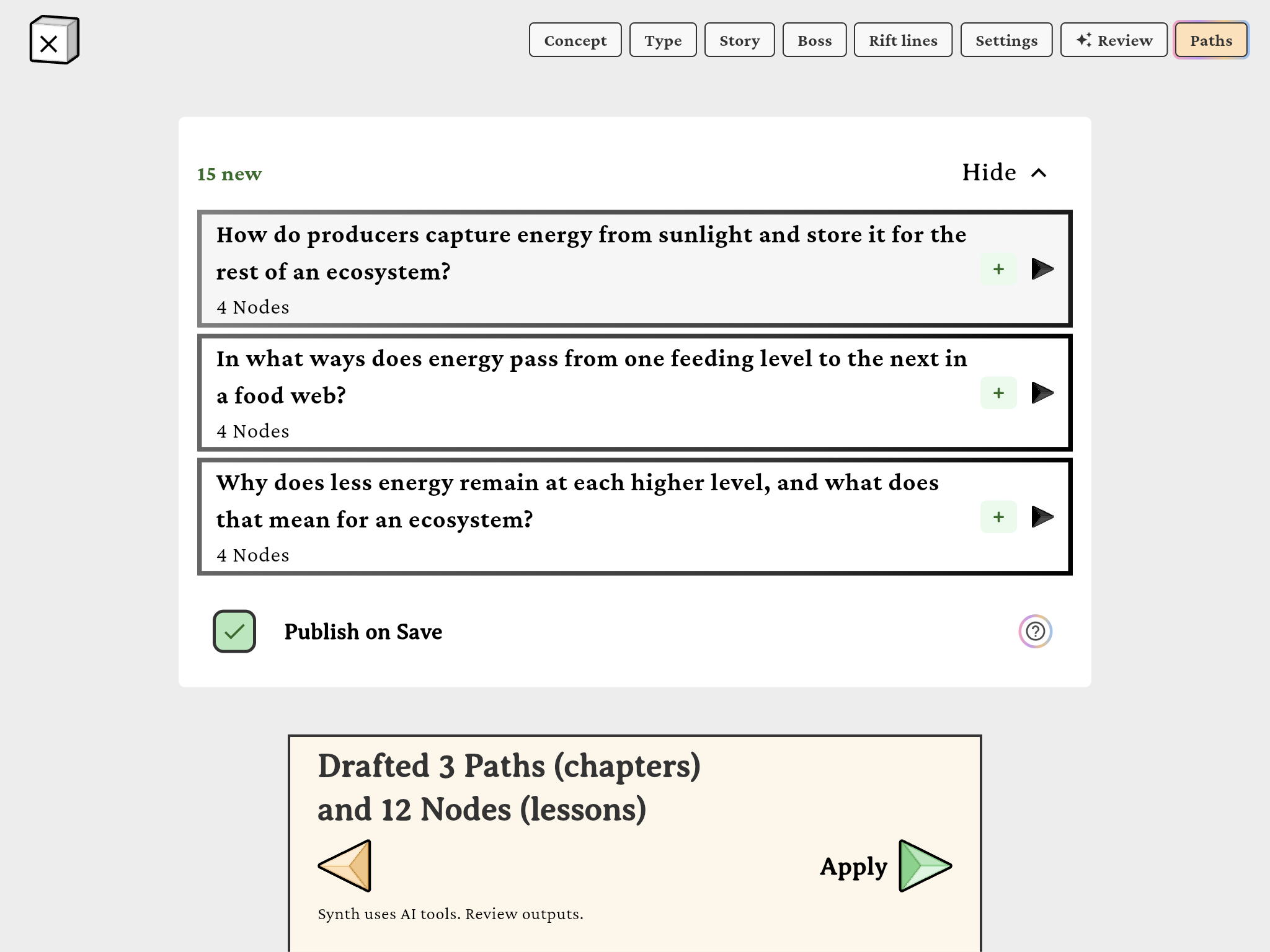
The drafted Paths and their Nodes, ready to apply.verified @ 1.3.2 Apply the draft
Leave Publish on Save ticked to publish the new Nodes as you apply, or untick it to save them as drafts. Tap Apply in the dock.
After that
- Fill the new Nodes with Beats (steps) and Checks (lesson steps): see Generate or Revise Inside a Campaign with Synth.
- To undo an apply, tap Undo on the result, or open History in the Builder for its Restore points. One is kept before each Synth save, the last 10.